

Help centre
Get your plugin running.
Install, activate, move to another computer, update: the steps for every Bounce The Mix plugin, then what's specific to each one.
01
Download
From your licence page: Account → My software → the plugin → Download, for your system.
02
Install
Run the installer. It replaces an older version and keeps your presets and licence.
03
Activate
In the plugin: the email of your account and your licence key. Done, it unlocks.
On this page
Step by step
Install on macOS
Our macOS installers run on Apple Silicon and Intel Macs. When there's a choice, pick the one for your chip (Apple menu → About This Mac); a Universal installer fits both.
- 01
Download the installer from your licence page: Account → My software → the plugin → Download.
- 02
Open the downloaded file and run the installer inside it. macOS may ask for your password to put the plugin in the shared plug-in folders.
- 03
If macOS says it can't verify the developer, open System Settings → Privacy & Security, scroll down, choose Open Anyway and run the installer again.
- 04
Quit and reopen your DAW, then rescan its plug-ins. Logic Pro and GarageBand: restart the Mac if the plugin still doesn't appear.
- The installer puts the VST3 in /Library/Audio/Plug-Ins/VST3 and the Audio Unit in /Library/Audio/Plug-Ins/Components, the folders every DAW scans.
- A newer installer replaces the version already installed. Your presets and your licence stay.
Install on Windows
One Setup file per plugin, 64-bit. Each plugin's section below has its requirements.
- 01
Download the Windows installer from your licence page: Account → My software → the plugin → Download.
- 02
Close your DAW, then run the Setup file.
- 03
If Windows SmartScreen shows “Windows protected your PC”, click More info, then Run anyway.
- 04
Open your DAW and rescan its plug-ins.
- The VST3 goes to C:\Program Files\Common Files\VST3, the folder every DAW scans.
- If a file was still in use, Windows asks to restart to finish replacing it.
- A newer installer replaces the version already installed. Your presets and your licence stay.
Activate a plugin
A plugin unlocks with two things: the email address of your Bounce The Mix account and your licence key. Both are in your account.
- 01
Load the plugin on a track in your DAW. While it's locked, its licence panel opens by itself.
- 02
Enter the email address of your Bounce The Mix account: the one you sign in with, not necessarily the one you paid with.
- 03
Paste your licence key. It's in Account → My software → the plugin → Reveal key; Copy puts it on the clipboard.
- 04
Choose Activate. The plugin checks the key with bouncethemix.com once and unlocks on this computer.
- Email and key go together: a key only activates with the email of the account it belongs to. If the plugin says the licence wasn't found, check the email first.
- Signed in with Google or Apple? Your account email is the one that service gave us. If you hid your email with Apple, it's the relay address ending in privaterelay.appleid.com, shown in your account settings.
- A trial activates the same way, with the trial key from My software. Internet is needed for the activation itself; afterwards see “Licence check and working offline”.
Move to another computer
A licence covers a set number of computers at the same time (each plugin's section says how many). Moving is free and immediate: free a slot, activate on the new computer.
- 01
In Account → My software → the plugin, under Activated devices, deactivate the computer you no longer use. The plugin's own licence panel can also deactivate the computer it runs on.
- 02
Install the plugin on the new computer and activate it with the same email and key.
- Reinstalling the operating system, a new disk or a new user account counts as a new computer: deactivate the old entry first, or its slot stays taken.
- Deactivate and reactivate as often as you need: there's no limit.
The plugin doesn't show in my DAW
Most of the time the DAW just hasn't rescanned. Go through these in order.
- 01
Rescan the plug-ins. Ableton Live: Settings → Plug-Ins → Rescan. Logic Pro: Settings → Plug-in Manager → Reset & Rescan Selection. FL Studio: Options → Manage plugins → Find plugins. Studio One: Options → Locations → VST Plug-ins. Cubase: Studio → VST Plug-in Manager → Rescan. Reaper: Preferences → Plug-ins → VST → Re-scan.
- 02
Check the format your DAW loads. Logic Pro and GarageBand use Audio Units only (install the AU); Ableton Live, FL Studio, Studio One, Cubase, Reaper and Bitwig load VST3. Our plugins are 64-bit: a 32-bit DAW can't load them.
- 03
Check the folders your DAW scans: on macOS /Library/Audio/Plug-Ins/VST3 and /Library/Audio/Plug-Ins/Components, on Windows C:\Program Files\Common Files\VST3. If your DAW only scans a custom folder, add these.
- 04
Logic Pro validates every Audio Unit before listing it. A plugin installed while Logic was open may need a restart of the Mac, then Plug-in Manager → Reset & Rescan Selection.
- Still nothing? Write to us with your DAW and its version, your operating system and the plugin version: we'll sort it out together.
I lost my licence key
Your key lives in your account, never only in an email.
- Account → My software → the plugin → Reveal key shows it; Copy puts it on the clipboard. Paste it rather than typing it: 0 and O, 1 and I are easy to mix up.
- Can't sign in? Use “Forgot password?” on the sign-in page: the reset link goes to your account's email.
- Bought without an account? The order email has the button to create it: your key is waiting there.
Updates
New versions are announced inside the plugin and on the bell in your account, never by email.
- 01
When a newer version exists, the plugin tells you the next time you open it, with what changed. Choose Download Update.
- 02
The plugin asks where to save the installer, downloads it with a progress bar and checks the file.
- 03
Run the installer: it replaces the old version and keeps your presets and licence. Then reopen your DAW.
- Your licence page has the newest installer too, with what changed.
- An older build whose Download Update only opens the website, or that doesn't announce updates yet: download the new installer from your licence page once; from then on the plugin downloads its updates itself.
- Updating doesn't use a slot: the computer stays activated.
Free trials
Paid plugins come with a free trial of the full plugin, no card needed; each plugin's section says how many days. Preset packs released later come with a bought or free licence, not with a trial.
- Start it from the plugin's page while signed in (the trial is a licence in your name, so it needs an account). The clock starts when you click, so start it on the computer you'll install on.
- You get a trial key in Account → My software: install the plugin and activate it as usual.
- When the trial ends, the plugin lets the sound through untouched and shows its licence panel. Your projects and presets stay as they are.
- Buying during or after the trial keeps the same key and the same computers: nothing to reinstall or re-enter, the plugin unlocks the next time you open it. One free trial per person and per plugin.
Licence check and working offline
A plugin checks its licence with bouncethemix.com when it loads and again every so often, in the background.
- Without internet it keeps working for a grace period after its last check; each plugin's section says how long. Connect the computer once in a while and nothing changes.
- A failed connection never locks the plugin by itself: it only locks once the grace period has passed without a check.
Plugin by plugin
What's specific to each plugin
Systems, formats, computers, the latest version and each plugin's own questions.
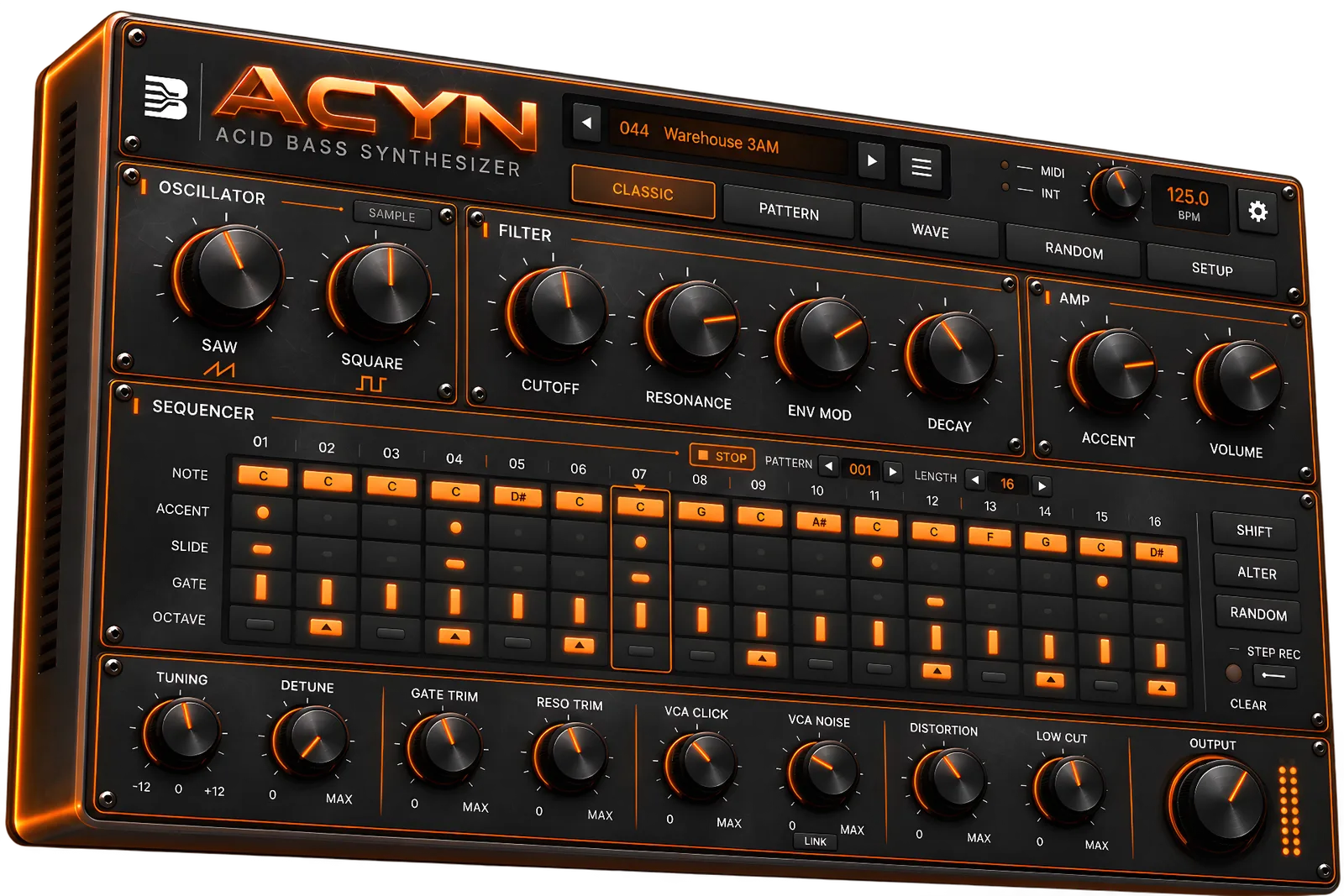
Instrument plugin
Acyn
- Plugin Formats
- VST3, AU, Standalone
- Operating System
- macOS 11+ (Apple Silicon and Intel), Windows 10+ (64-bit)
- Computers
- Up to 3 at the same time
- Free trial
- 7 days, full version
- Latest version
- 1.0.1 · Oct 27, 2026
- Licence check
- Online every 7 days · works up to 21 days offline
How to install Acyn
macOS: open the .dmg and double-click "Install ACYN". If macOS says it can't verify the developer, open System Settings > Privacy & Security, scroll down and click "Open Anyway" next to the ACYN installer, then run it again. It installs the VST3 and Audio Unit (Apple Silicon and Intel) and replaces any older ACYN version. Windows: run the Setup file. If Windows SmartScreen shows "Windows protected your PC", click "More info" and then "Run anyway". It installs the VST3 to C:\Program Files\Common Files\VST3 and replaces any older ACYN version. Then rescan plug-ins in your DAW, open ACYN and enter your account email and licence key. Your presets and licence are kept when you update.
Questions about Acyn
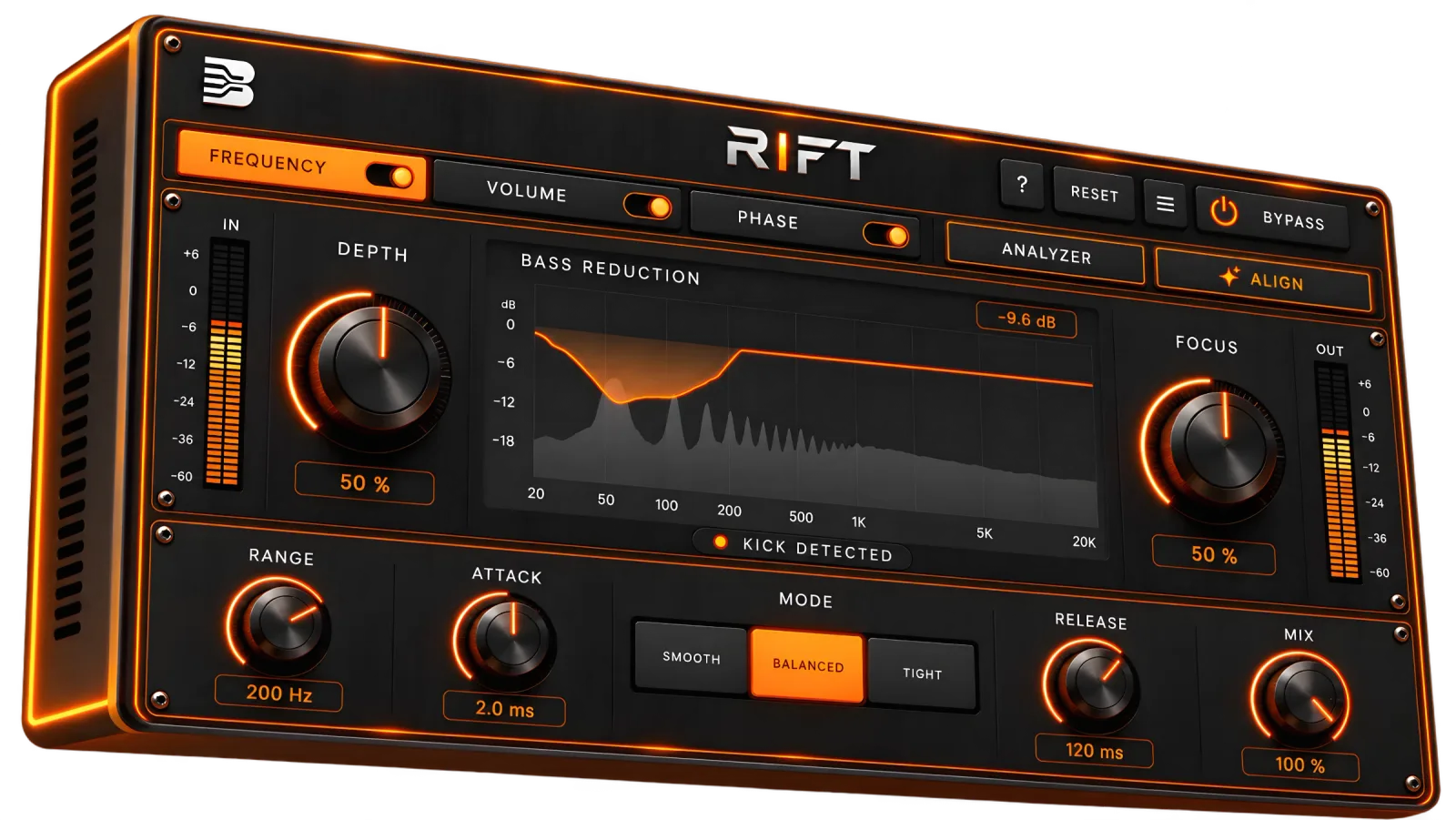
Effect plugin
Rift
- Plugin Formats
- VST3, AU (macOS), Standalone
- Operating System
- macOS 11 or later, Windows 10 or later (64-bit)
- Processor
- Apple Silicon or Intel (Mac), x64 (Windows)
- Requirements
- A DAW with sidechain input
- Tested in
- Ableton Live
- Computers
- Up to 3 at the same time
- Free trial
- 7 days, full version
- Latest version
- 1.0.0 · Oct 15, 2026
- Licence check
- Online every 7 days · works up to 21 days offline
How to install Rift
macOS: download the installer for your Mac (Apple menu > About This Mac: Apple Silicon for M1 or newer, Intel for older Macs). It is signed and notarised by Apple and opens without warnings. Windows: Windows SmartScreen may show "Windows protected your PC" because the installer has no code-signing certificate yet. Click "More info", then "Run anyway". After installing, rescan plug-ins in your DAW. Put RIFT on your bass track, send your kick to its sidechain input, and enter your account email and licence key the first time RIFT opens.
Questions about Rift
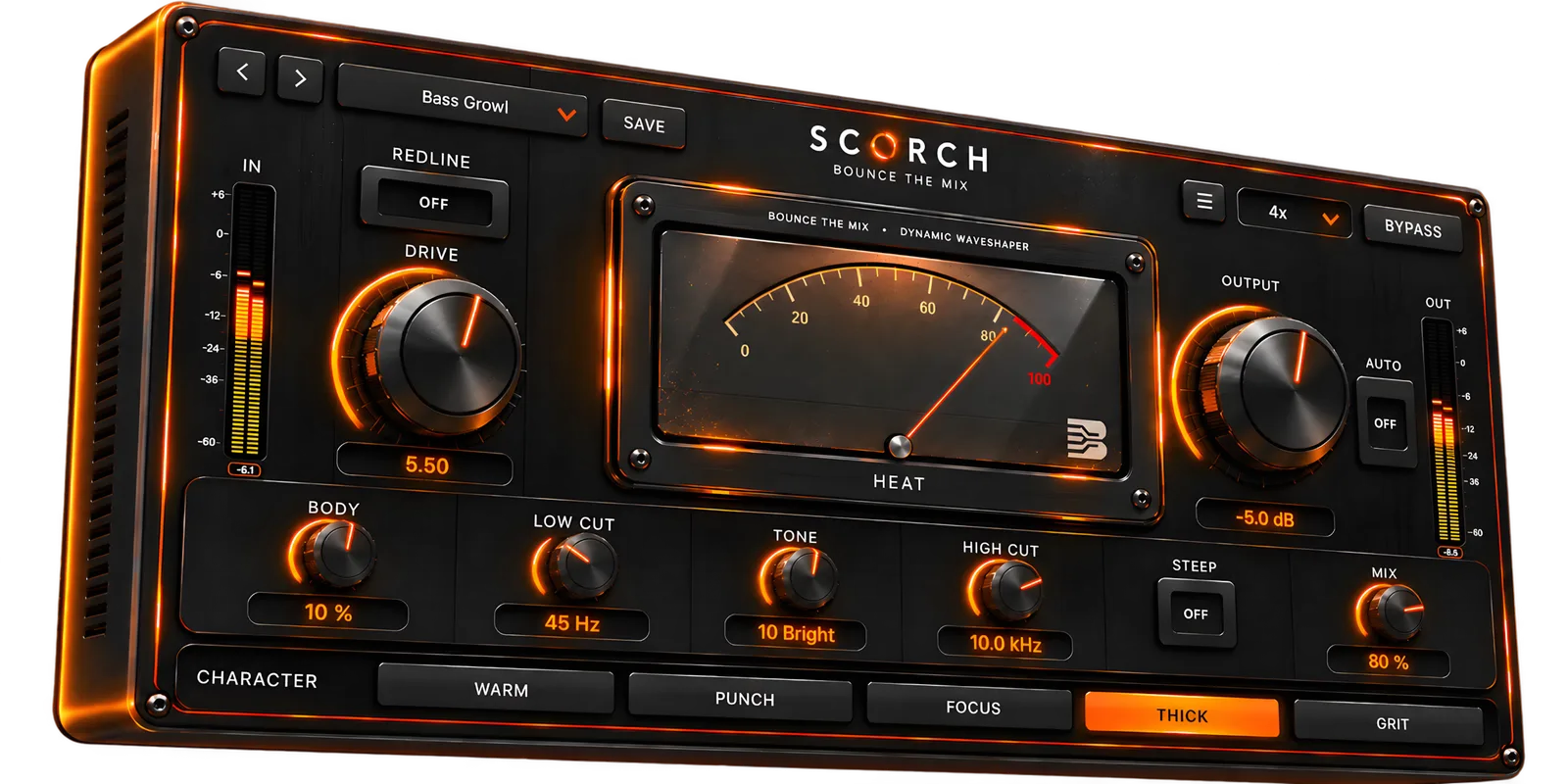
Effect plugin
Scorch
- Formats
- VST3, AU
- macOS
- 10.13 or later
- Windows
- 10 or later
- Oversampling
- Up to 16x
- Presets
- 25 factory presets
- License
- Perpetual, up to 3 activations
- Computers
- Up to 3 at the same time
- Free trial
- 7 days, full version
- Latest version
- 2.0.0 · Oct 7, 2026
- Licence check
- Online every 7 days · works up to 21 days offline
How to install Scorch
1. Download the installer for your operating system. 2. Open the downloaded file. 3. Double-click the Scorch installer and follow the on-screen steps. 4. Open your DAW, load Scorch on a track, choose Activate, and paste your licence key.
Questions about Scorch
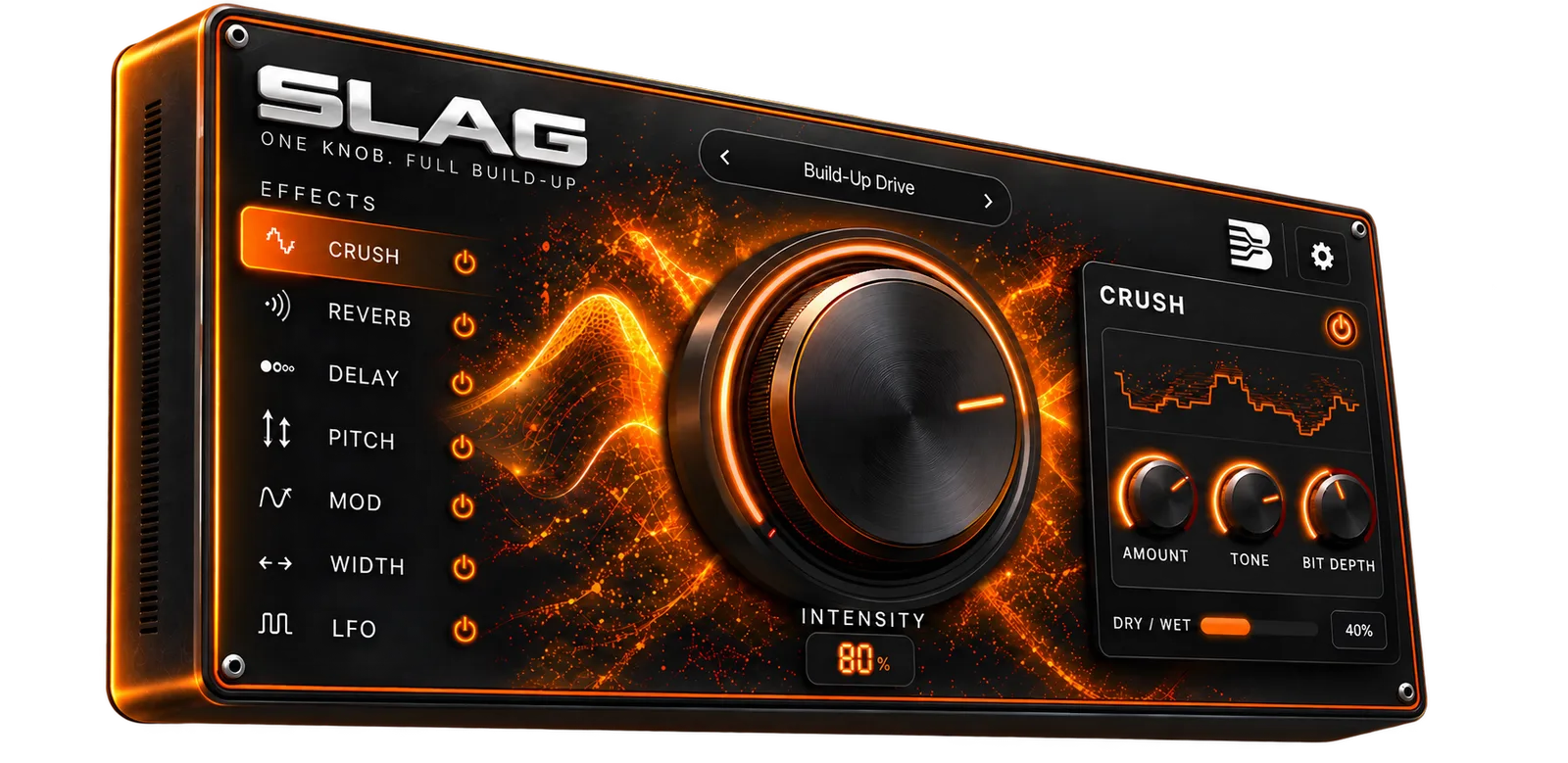
Effect plugin
Slag
- Plugin Formats
- VST3, AU (AU macOS only)
- Operating System
- macOS 11+, Windows 10/11 64-bit
- Chips
- Apple Silicon & Intel
- Licence
- One-time · 3 activations · 7-day trial
- Computers
- Up to 3 at the same time
- Free trial
- 7 days, full version
- Latest version
- 2.0.1 · Oct 6, 2026
- Licence check
- Online every 7 days · works up to 21 days offline
Questions about Slag
Still stuck?
Write to us.
Tell us the plugin, your DAW and your system, and what you see on screen.
We usually reply within 24 hours.